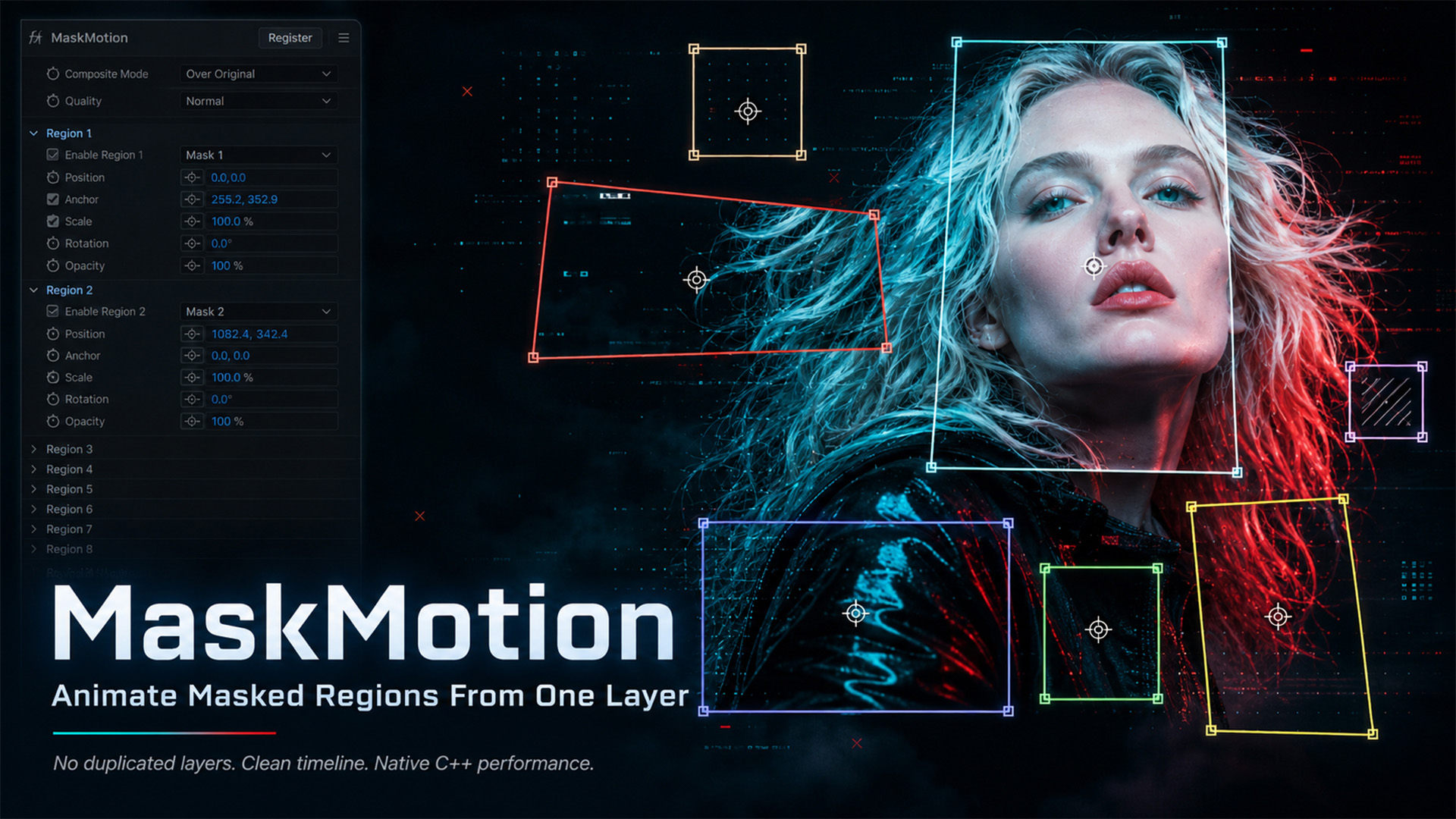
MaskMotion
Animate every masked region independently — without duplicating layers.
- Version
- 1.0.0
- Product type
- Native C++ After Effects plugin
- Compatibility
- After Effects 2022 or later
- Availability
- aescripts + aeplugins
|
The Problem
When you want to animate 8 masked parts of an image in After Effects, the traditional workflow forces you to duplicate the layer 8 times. Your timeline becomes cluttered, renders slow down, and making global changes becomes painful. |
|
The Solution
8 masks should not mean 8 layers. MaskMotion is a native C++ After Effects plugin that lets you animate each masked region independently — all from a single layer. Apply the effect, assign your masks to regions, and animate Position, Anchor, Scale, Rotation, and Opacity per region. Your timeline stays clean. |
Everything you need,
nothing you don't.
|
🎭
8 Independent RegionsUp to 8 regions per effect instance, each mapped to one of your layer's existing masks. |
🏷️
Automatic Mask DetectionRegion dropdowns update automatically to match your mask names — no manual wiring. |
🔑
Full Keyframe SupportAnimate Position, Anchor, Scale, Rotation, and Opacity on every region with standard AE keyframes. |
|
🎨
8 / 16 / 32-bit ColorSupports all After Effects color depths for maximum flexibility in high-end pipelines. |
⚡
Multi-Frame RenderingFully MFR-compatible. No performance bottlenecks when AE parallelizes your render. |
🔒
Smart Render SupportUses pre-render data for stable, correct output. Parameters checked via AE checkout APIs. |
Per-Region Transform Controls
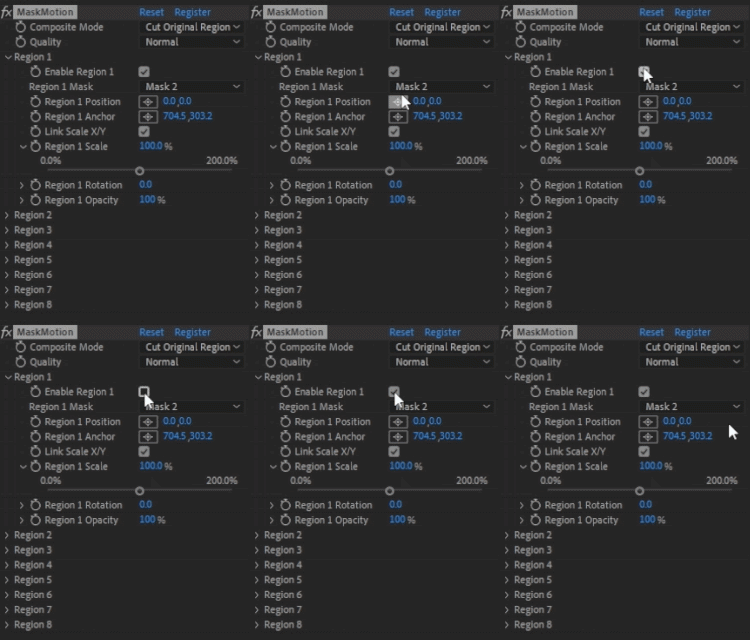
EnableToggle the region on or off without losing settings |
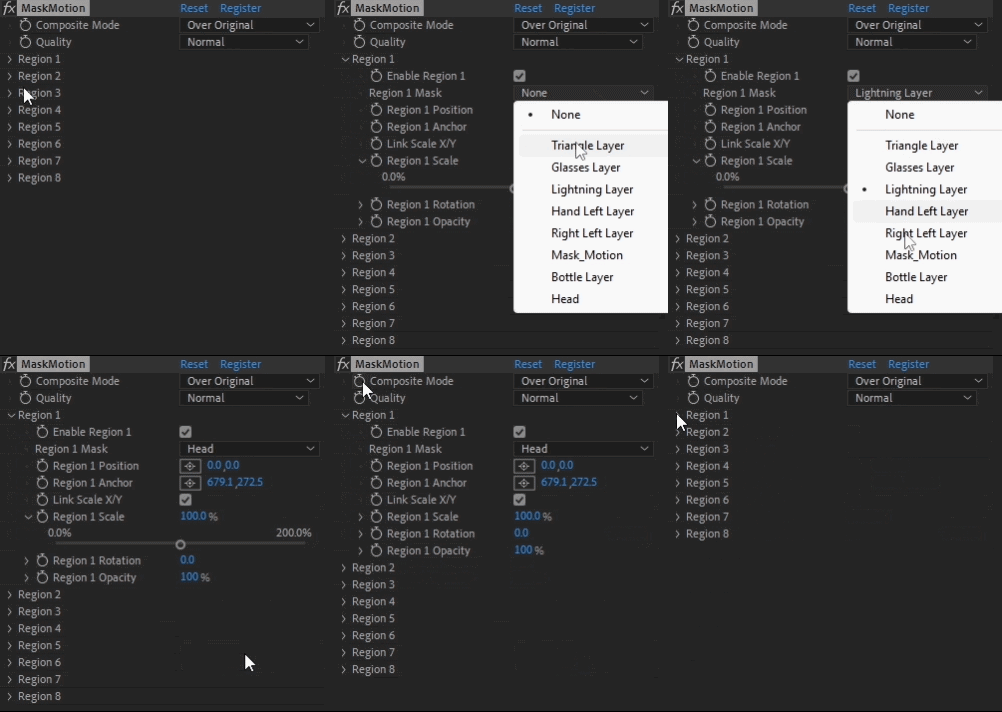
MaskSelect which layer mask this region uses |
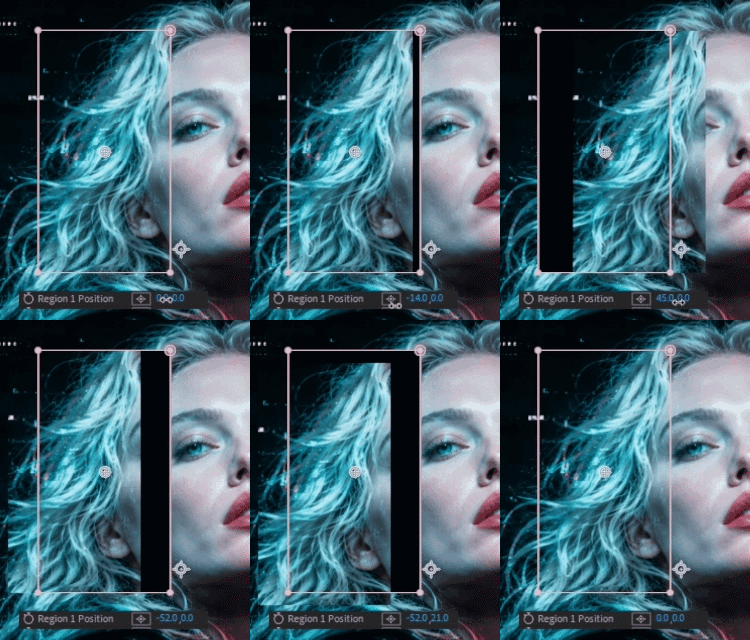
PositionMove the region in X and Y (in pixels) |
Anchor OffsetShift the transform anchor relative to the mask center |
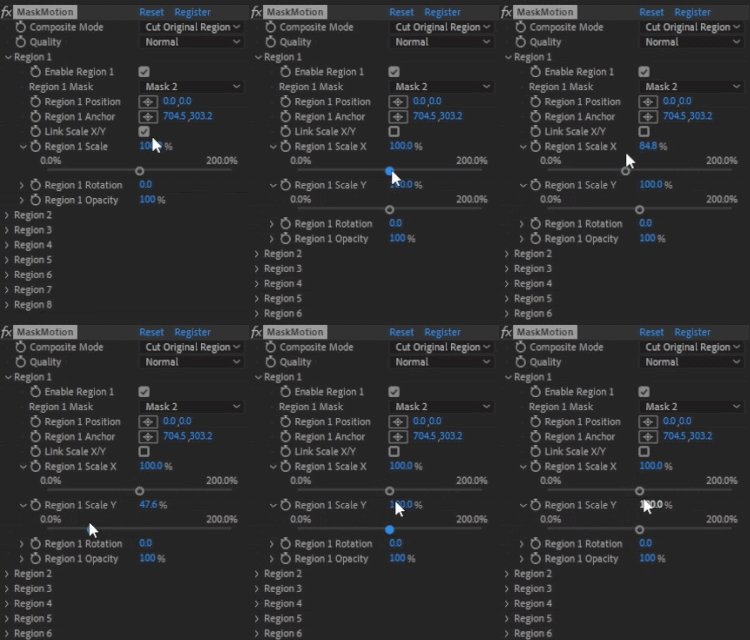
Link Scale X/YToggle between uniform scale and independent axis control |
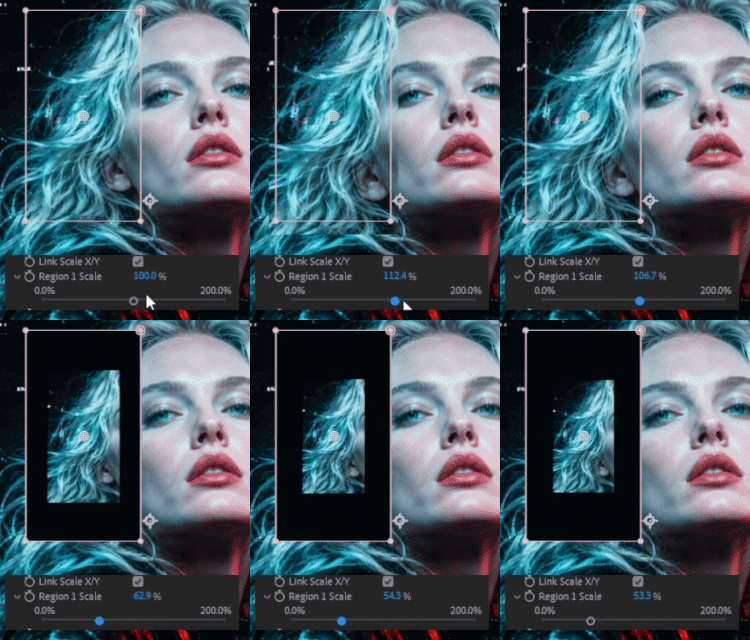
ScaleUniform scale percentage |
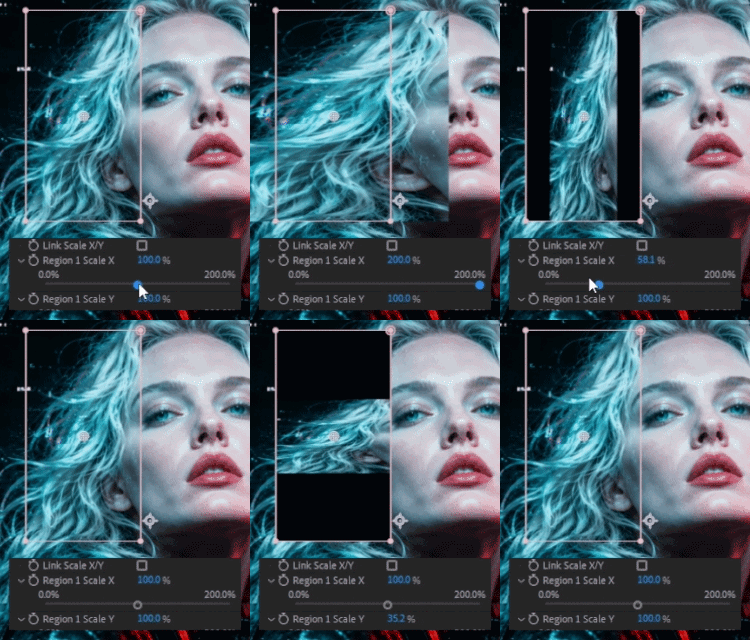
Scale X / Scale YIndependent axis scale (available when Link is off) |
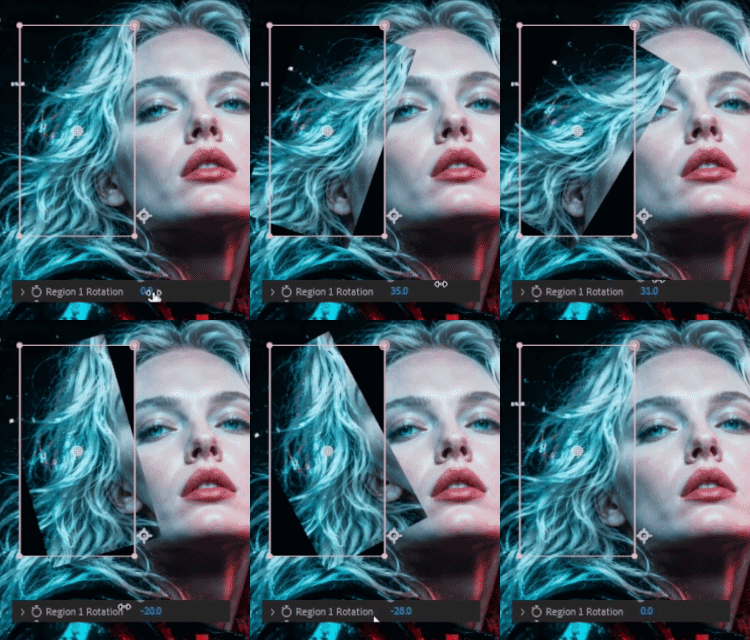
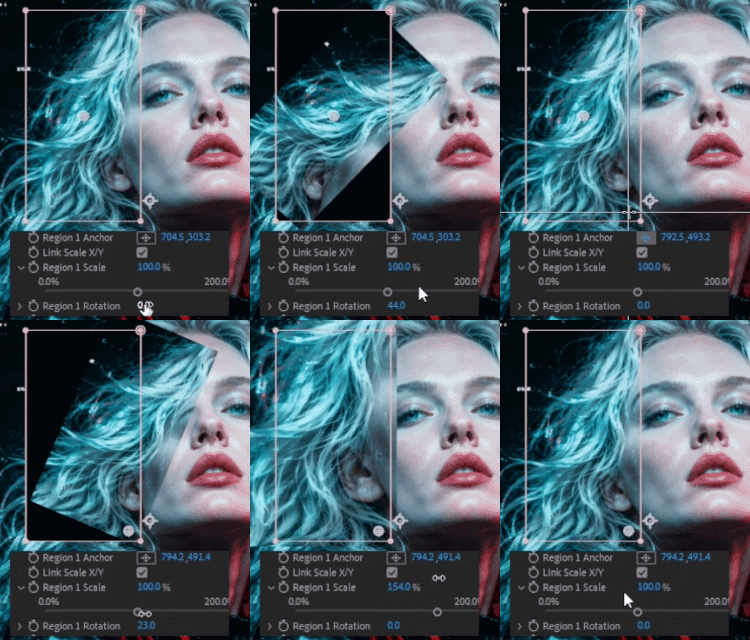
RotationRotation in degrees around the anchor point |
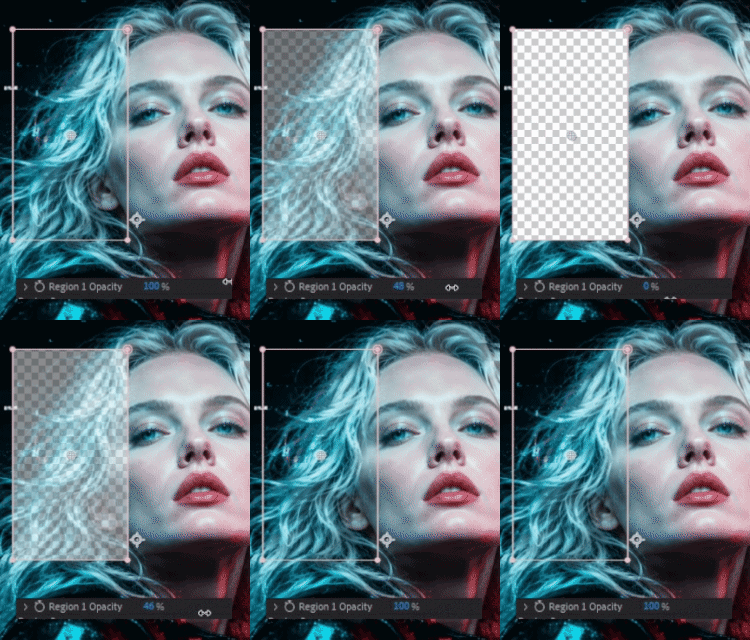
OpacityOpacity percentage for this region |
How regions blend with the original
Over OriginalTransformed regions composite on top of the original layer |
Cut Original RegionOriginal masked area is removed; replaced by the transformed version. Best for character animation. |
Regions OnlyOnly the transformed regions are visible; original layer is hidden |
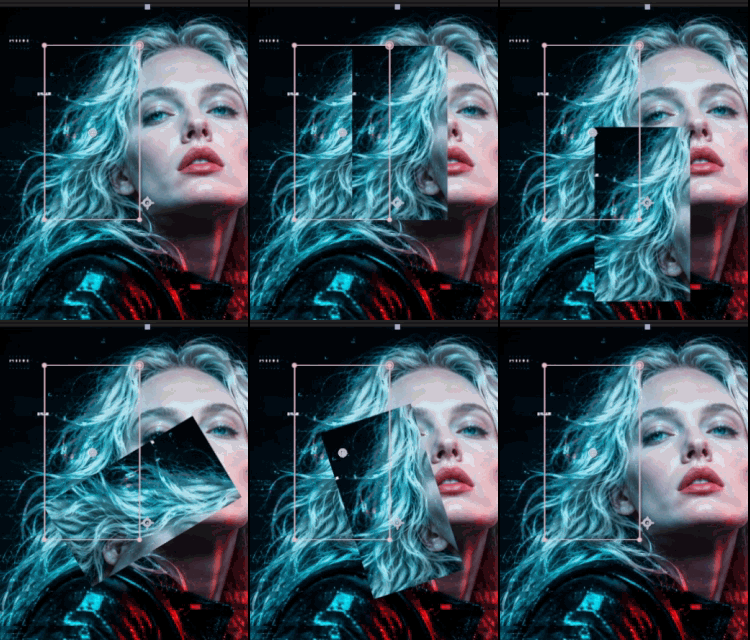
Over Original |
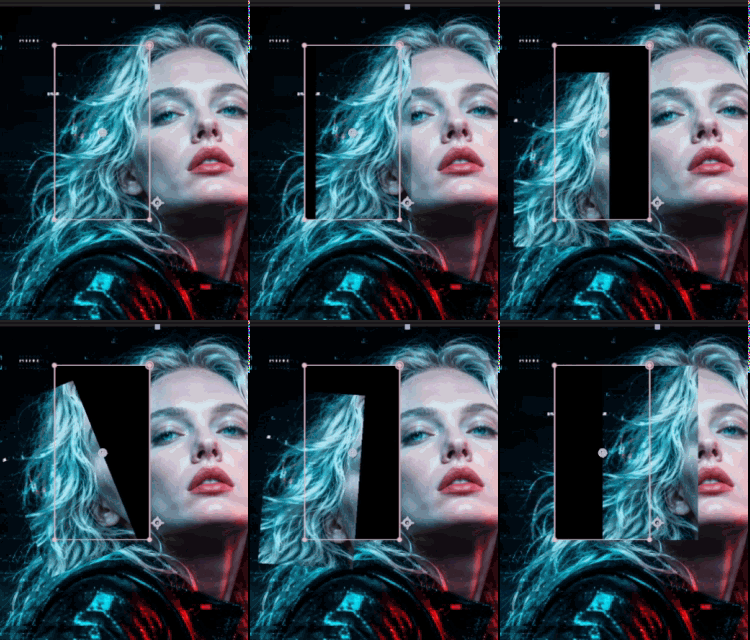
Cut Original Region |
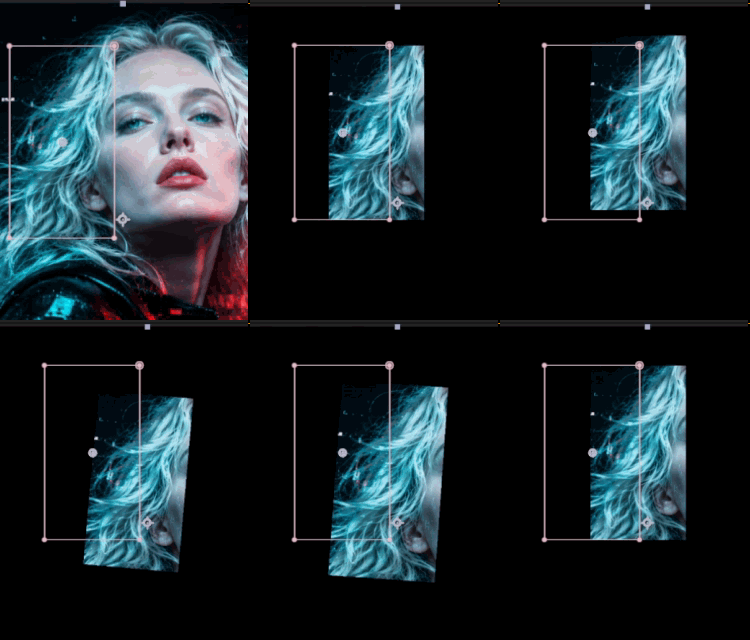
Regions Only |
DraftFast preview — bilinear sampling. Use while animating keyframes. |
NormalBalanced quality for standard work |
HighHigh-quality sampling for final renders. Switch to this before exporting. |
Up and running in 5 steps
1 |
Draw your masks on a layer and name them — e.g. Head, Left Hand, Eyes, Body |
2 |
Apply Effect → Discribe → MaskMotion to the layer |
3 |
For each Region, select the corresponding mask from the dropdown — mask names appear automatically |
4 |
Adjust Position, Scale, Rotation, and Opacity per region |
5 |
Set keyframes and animate |
Get the plugin into After Effects
The easiest way is the aescripts + aeplugins manager app. For a trial, select Add Trial from the Account menu.
🪟 WindowsCopy MaskMotion.aex to your Plug-ins folder: C:\Program Files\Adobe\Adobe After Effects <version>\Support Files\Plug-ins\
|
🍎 macOSCopy MaskMotion.plugin to your Plug-ins folder: /Applications/Adobe After Effects <version>/Plug-ins/
|
After installation, find it under Effect → Discribe → MaskMotion and restart After Effects.
What you need to run it
🪟 Windows→ After Effects 2022 (22.0) or later → Windows 10 / 11 (64-bit) |
🍎 macOS→ After Effects 2022 (22.0) or later → macOS 11 Big Sur or later → Universal Binary — native on Apple Silicon (M1/M2/M3) and Intel |
Get the most out of MaskMotion
| Name your masks first. The plugin reads mask names automatically. If you add the effect first and name masks later, close and reopen the Effect Controls panel to refresh the dropdowns. |
| Anchor Offset is relative to mask center. 0, 0 always means the centroid of the selected mask — no matter where it is in the composition. Moving the offset shifts the pivot for rotation and scale. |
| Use Cut Original Region for character animation. It removes the original area so transformed regions don't overlap it — cleanest result for characters and product explode workflows. |
| Draft while animating, High before exporting. Switch quality modes to maximize speed during keyframe work, then flip to High for final output. |
| Need more than 8 regions? Precompose the layer and apply a second MaskMotion instance on top. |
| Unused regions are harmless. Regions with no mask selected do not affect the output — leave them empty safely. |
v1.0.0 — what's not yet supported
| ! | Maximum 8 regions per effect instance |
| ! | Works on raster layers (footage, solids, precomps) only — shape layers and text layers are not supported |
| ! | Mask Feather soft-edge blending on transformed regions is not supported in v1.0.0 |
| ! | Mask Expansion values are not read in v1.0.0 |
| ! | Optimized for straight-edged masks (rectangles, squares, polygons) — curved masks like circles or ellipses are not currently supported |
Changelog
| v1.0.0 — Initial Release | ||||||||||||||||||||
|
Learn MaskMotion in one walkthrough
MaskMotion
Animate every masked region independently — without duplicating layers.